

Q&A buttons
Q&A buttons
Q&A sets are guided menus inside the widget: a question with buttons, where each button sends a reply, opens a page, shows a follow-up question or hands the visitor to an operator.
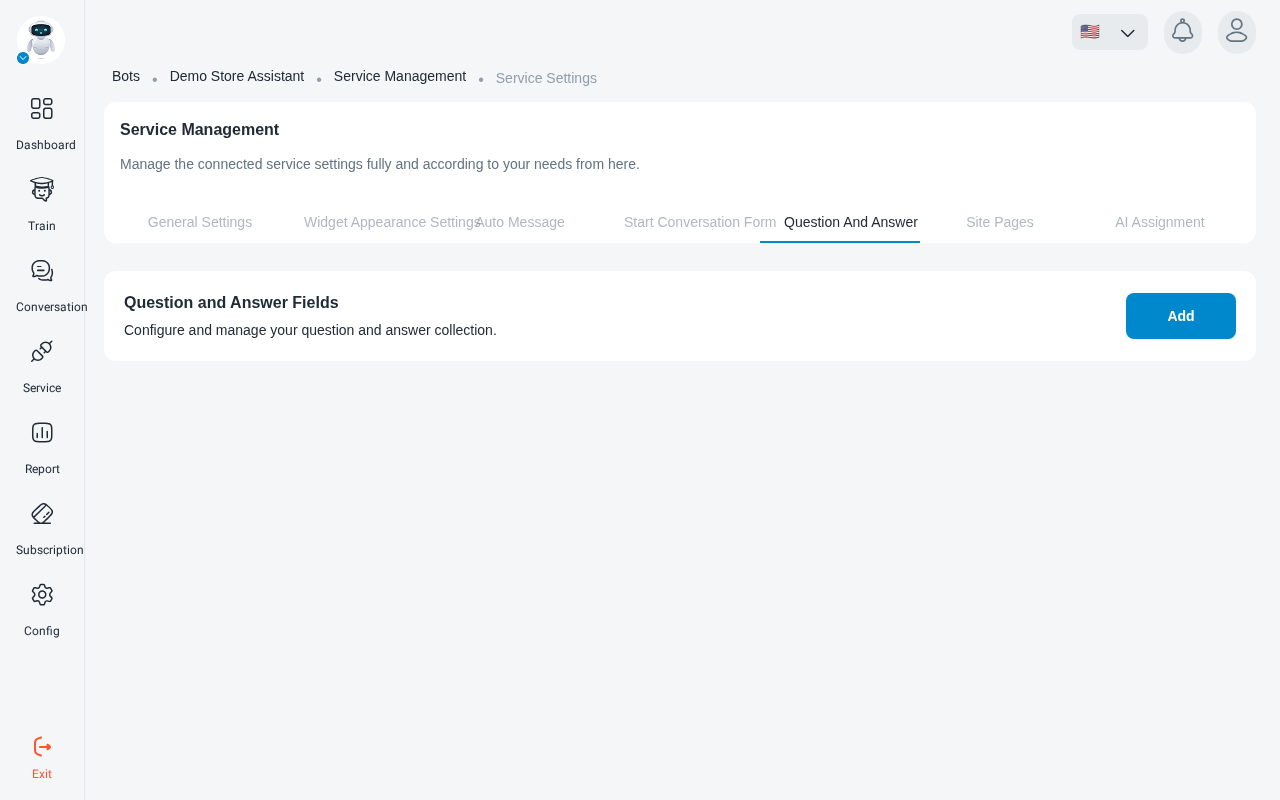
Open the question and answer tab of your widget’s settings (your robot → Service → the gear icon on your widget’s card), and click Add under Question and Answer Fields.
Name the set and pick its page
In the Add Question step, enter a collection name.
In Page address, enter where this set appears, and choose how the address is matched:
- Equals to: only that exact address.
- Contains: every page whose address contains the text.
Then choose whether the set is shown with the widget in active or inactive status, and click Apply.
Write the question
In the Question Title step, enter the question visitors will see.
It starts empty: “You haven’t created any option for this question yet.” Click the marked area to add one.
Add options
In Add New Option, enter the Option Title, which is the text on the button. Then choose its Action Type:
The fields for the chosen action, such as Page address or Message Text, appear below it. Click Save Info, or Cancel to close without saving.