

Pre-chat form
Pre-chat form
A pre-chat form collects details, such as a name, email or phone number, before the visitor can start chatting. Their answers are saved to the visitor’s profile, so operators see who they are talking to.
Open the Start Conversation Form tab of your widget’s settings (your robot → Service → the gear icon on your widget’s card).
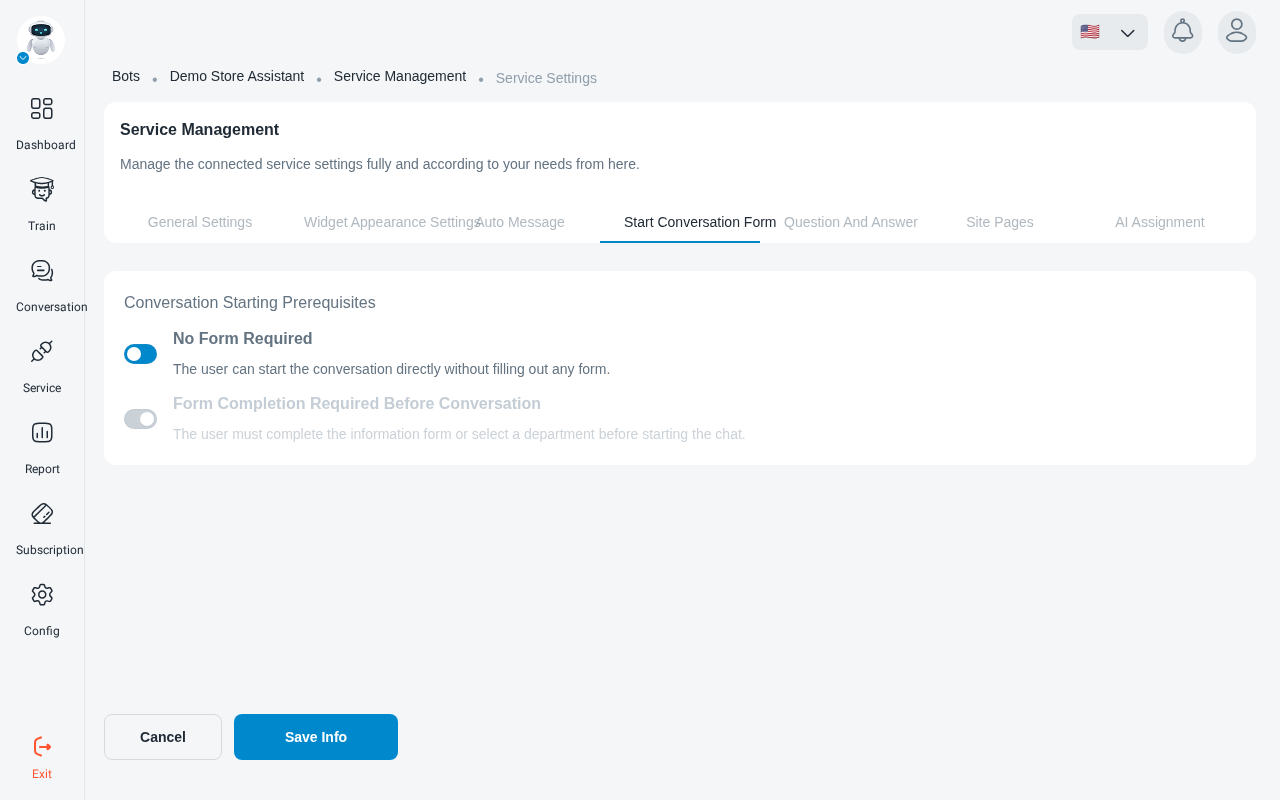
Turn the form on
Choose one option:
- No Form Required: visitors start chatting straight away. Nothing else on this page applies.
- Form Completion Required Before Conversation: visitors complete the form (or choose a department) first.
Page and intro text
- Page to display the form: the page address where the form appears. An invalid address shows “Invalid url”.
- Text Above the Conversation Form: a short line shown above the fields.
Add a field
Under Conversation Form Fields, click Add Field to open Add New Field.
Map fields to the matching profile slot: an email field to Email, a phone field to Phone number. That decides where operators find the value later.
Click Save Info, or Cancel to close without saving.
Review your fields
Fields are listed with Field Title, Type, Character Limit, Required and User Information. To change one, open it, edit it and click Update Information.