

Manage sources and training status
The Data Collection table
Open your robot and go to Data Collection in the training menu. Every source you have added, whether a file, link or store, is listed in one table:
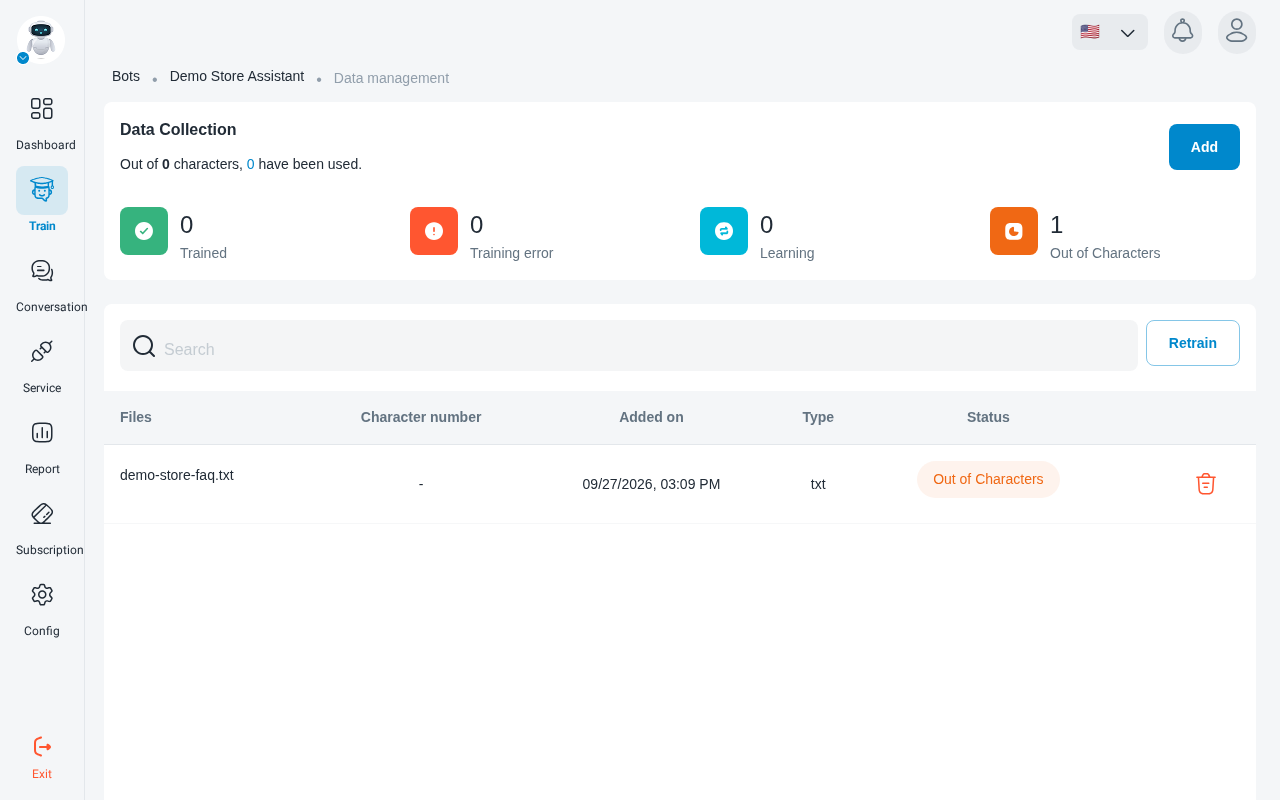
The page also shows how many characters you have used out of your plan’s limit.
The Character number column is the quickest health check. A source with zero or very few characters was probably not extracted correctly, for example a scanned PDF with no text layer, even if adding it looked successful.
Training statuses
The counters at the top of the page add up how many sources are in each status.
Statuses do not update on their own. Refresh the training status to see the latest state.
If your robot does not answer a question it should know, check the statuses here first. A source in Training error is invisible to the robot.
Retrain a source
When a file or web page has changed, or a previous training attempt failed, you don’t need to delete and re-add it. Select the sources and click Retrain. When it finishes, the panel shows “Retrain success”.
Check the statuses again afterwards and confirm every source is Trained.
Delete a source
To remove a source you no longer need, click Delete in its row. Its content leaves the robot’s knowledge, and the robot stops answering from it.