

Working hours
Working hours say when your team is available. Outside them the robot treats your operators as offline, and the visitor gets your offline message. They are set per robot: open the robot and go to Team → Working hours.
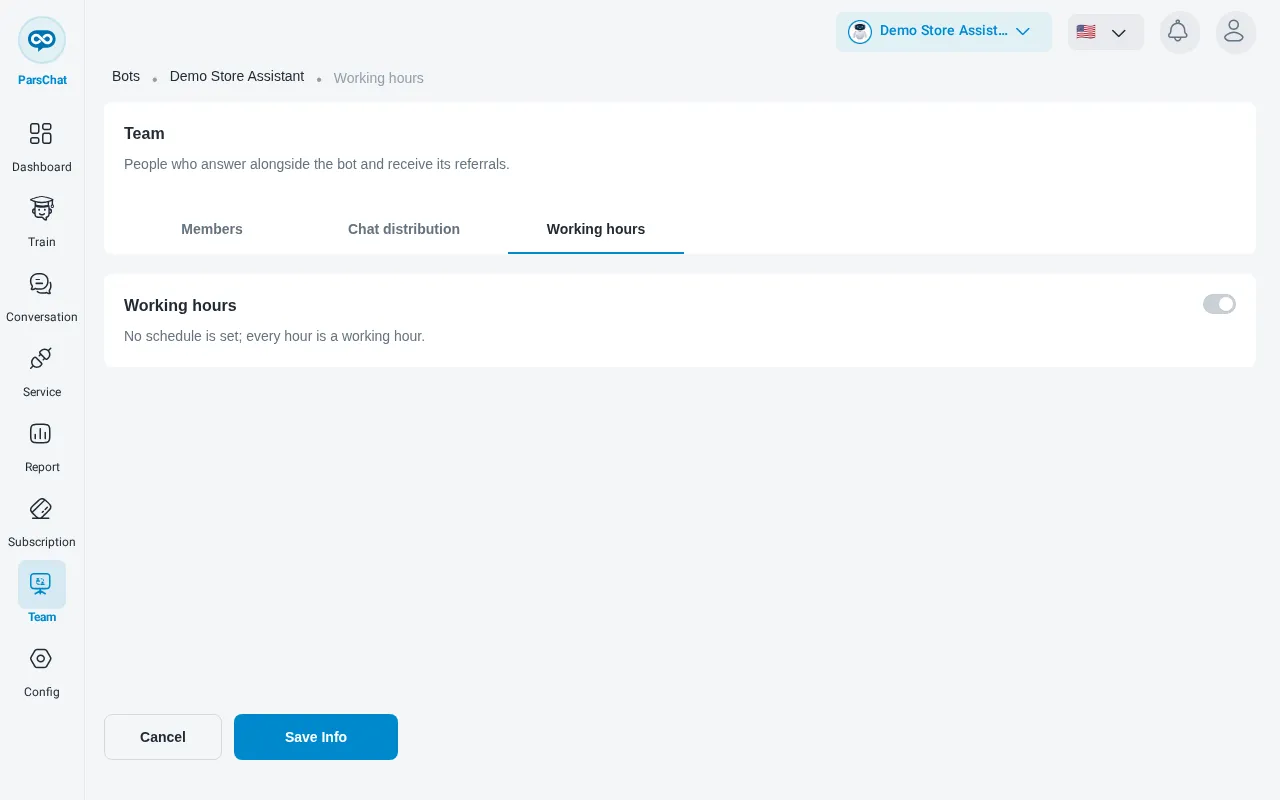
Turn the schedule on
The Working hours switch is off by default. While it is off, “No schedule is set; every hour is a working hour.” Turn it on to define a schedule: “The bot and operators count as online only within these ranges.”
Set the schedule
Choose the days
Each day from Saturday to Friday has a switch. A day that is switched off shows Closed.
The offline message
The message a visitor sees outside working hours is set under Config → Bot behavior, in Offline message. See Robot instructions.