

Work with a conversation
Open a conversation from Browse conversations. It opens beside the list, with the visitor’s name, service and online status at the top.
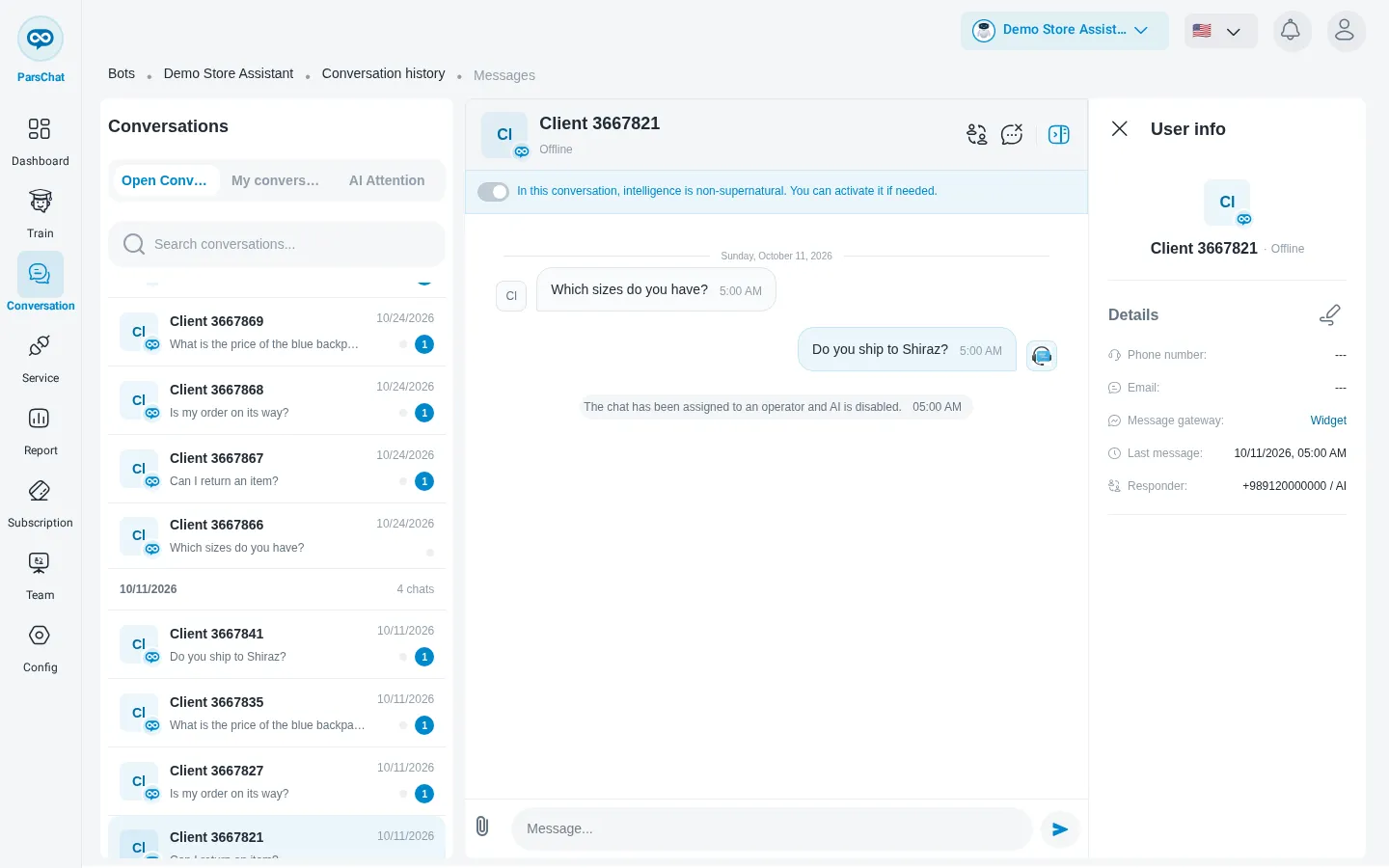
The header
Three icons sit at the top right of the conversation:
User info
The panel shows what you know about the visitor: Phone number, Email, the Message gateway (the service they wrote from), the Last message time, and the Responder: who has answered, the operator and the AI.
Choose Edit user info to correct their Full name, Phone number or Email, then Save changes.
Refer a chat
Choose Refer chat to pass the conversation on. The menu lists everyone who can take it: the Owner, the AI, and each operator, with a green dot when they are online and how many chats they have active. Pick one.
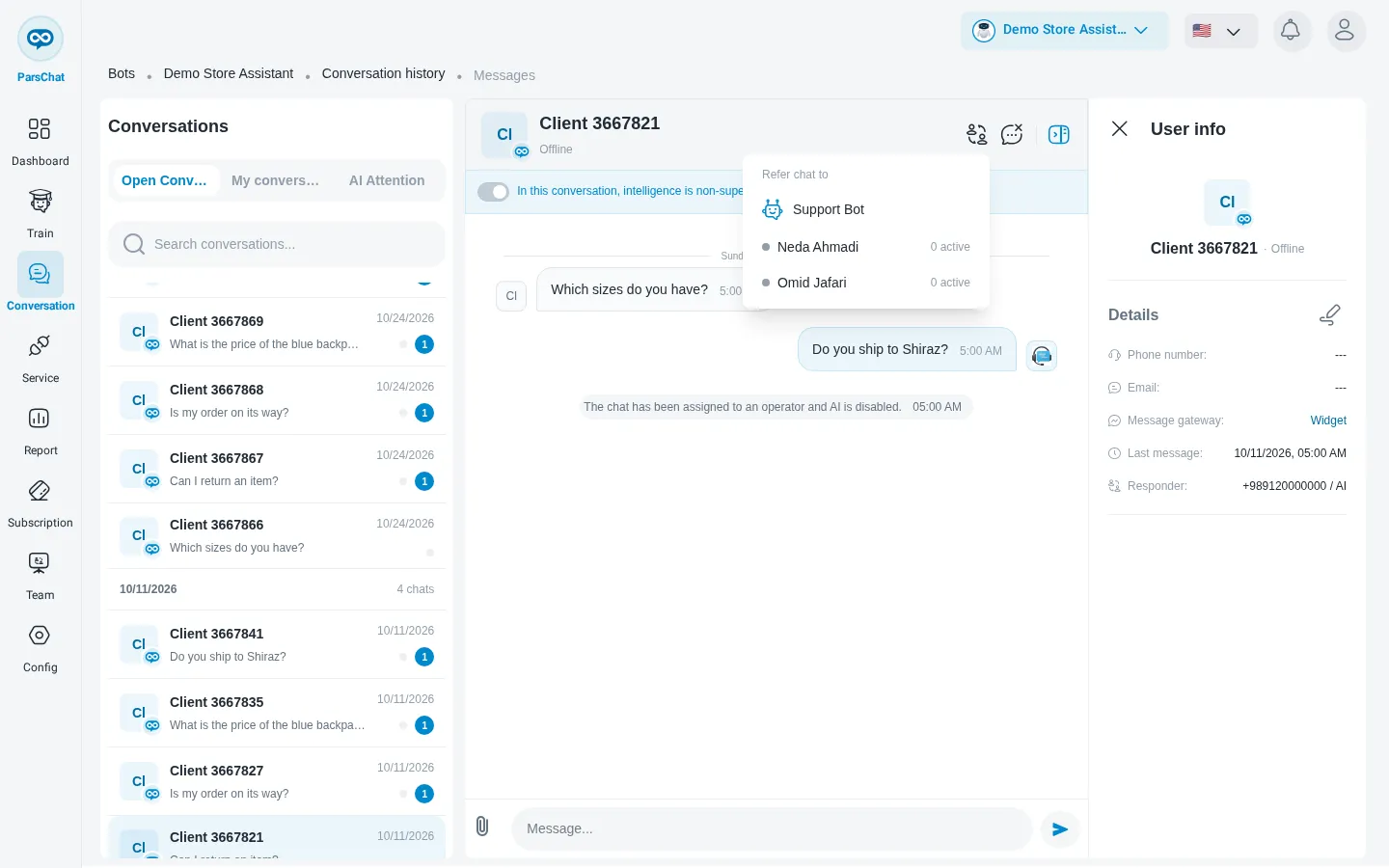
The panel confirms with a message such as Chat referred to Neda, or Chat handed back to the AI, and the conversation records that it was referred. If nobody is available, the menu says so.
A conversation is assigned to one operator at a time. If you open a conversation that belongs to another operator, the panel tells you This chat is assigned to another operator.
Hand the conversation back to the AI
When a conversation is with a human operator, a bar under the header says the AI is off in this conversation. Switch its toggle on to turn the AI back on for it: the panel confirms AI has been enabled, and the robot answers the visitor’s next message.
End a chat
Choose End chat when the visitor’s question is settled. The panel confirms The conversation has ended. A conversation you forget to end is closed for you after a while; see Auto-close conversations.
Unread messages
Each conversation in the list shows a badge with its unread messages. They are marked as read once you have the conversation open and the panel is the window you are looking at, so a conversation left open in a background tab keeps its badge.