

Quickstart
This guide takes you from sign-up to a robot answering on your website.
Sign up
Go to chat.parstechai.com and choose Sign up.
- Enter your mobile number and click Confirm and get code.
- Enter the 6-digit one-time code sent to your phone. You can ask for a new code after two minutes.
- Fill in your Name, Last name and Email. A referral code is optional.
- Choose a Password (at least 8 characters) and confirm it, then click Sign up.
If your number already has an account, entering the code signs you straight in.
Create your robot
After signing up you land on the create-robot page. Enter your robot’s name (at least 3 characters) and click Add bot.
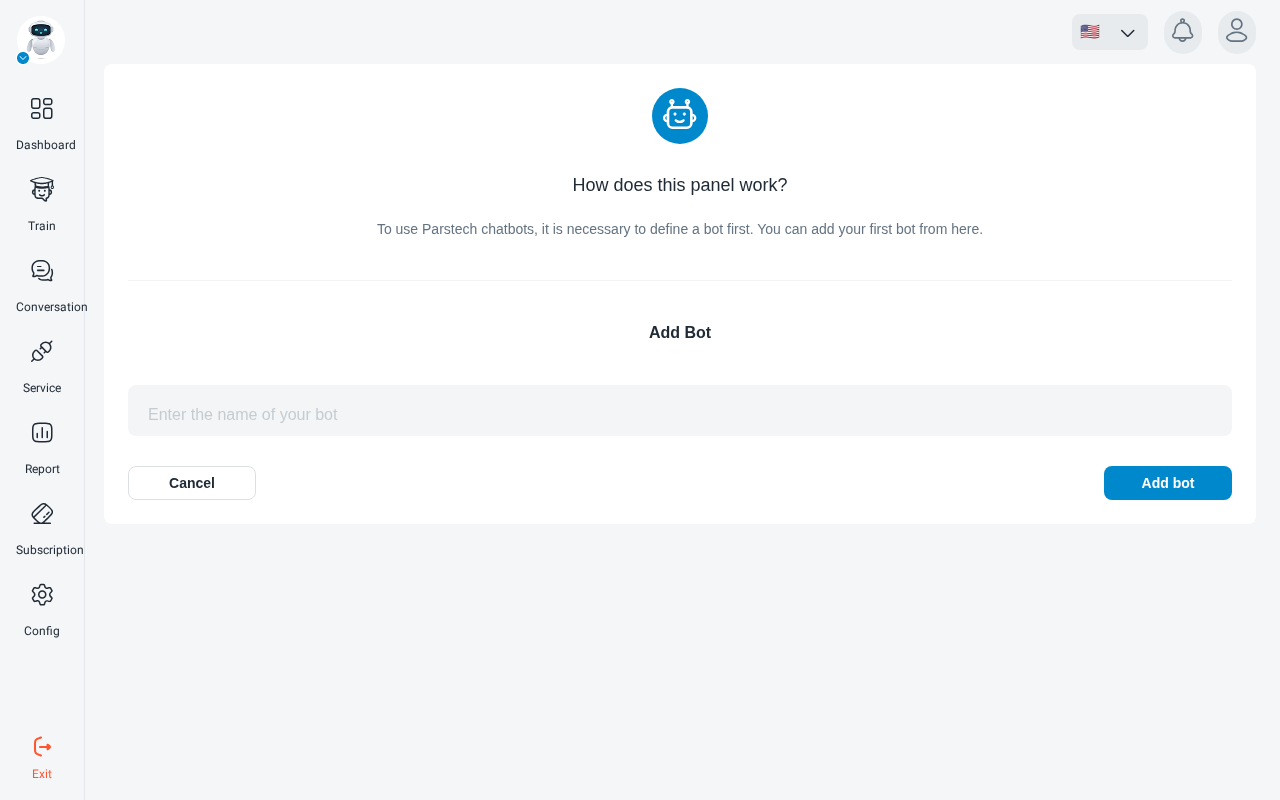
A short video guide opens. Click Continue to go to training.
Only the name is needed now. The robot’s introduction, answer language and tone are set later under Robot instructions.
Train it
On Train Bot, upload a document about your business (PDF, DOC, DOCX or TXT, up to 10 MB) or add a link to your website, then click Train Bot.
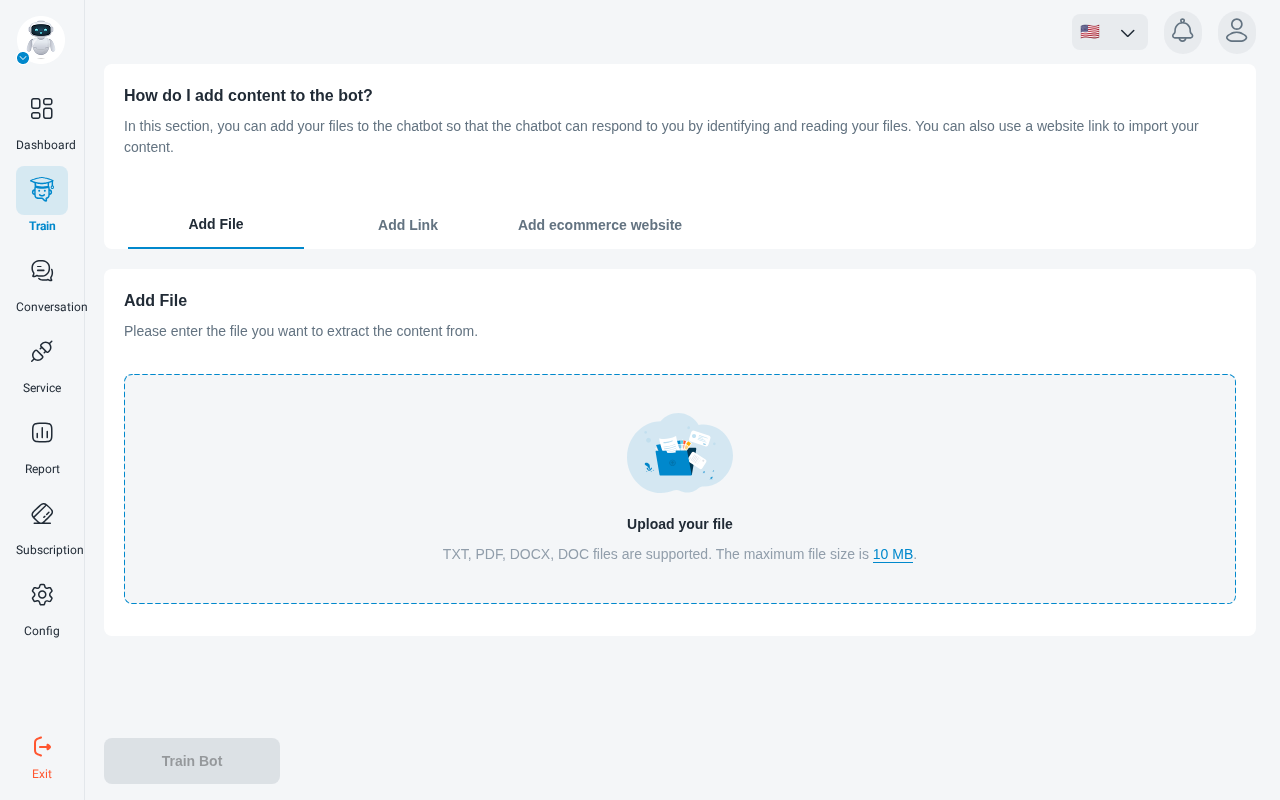
Wait until your sources show Trained in Data Collection. See Add data sources for every option.
Test it
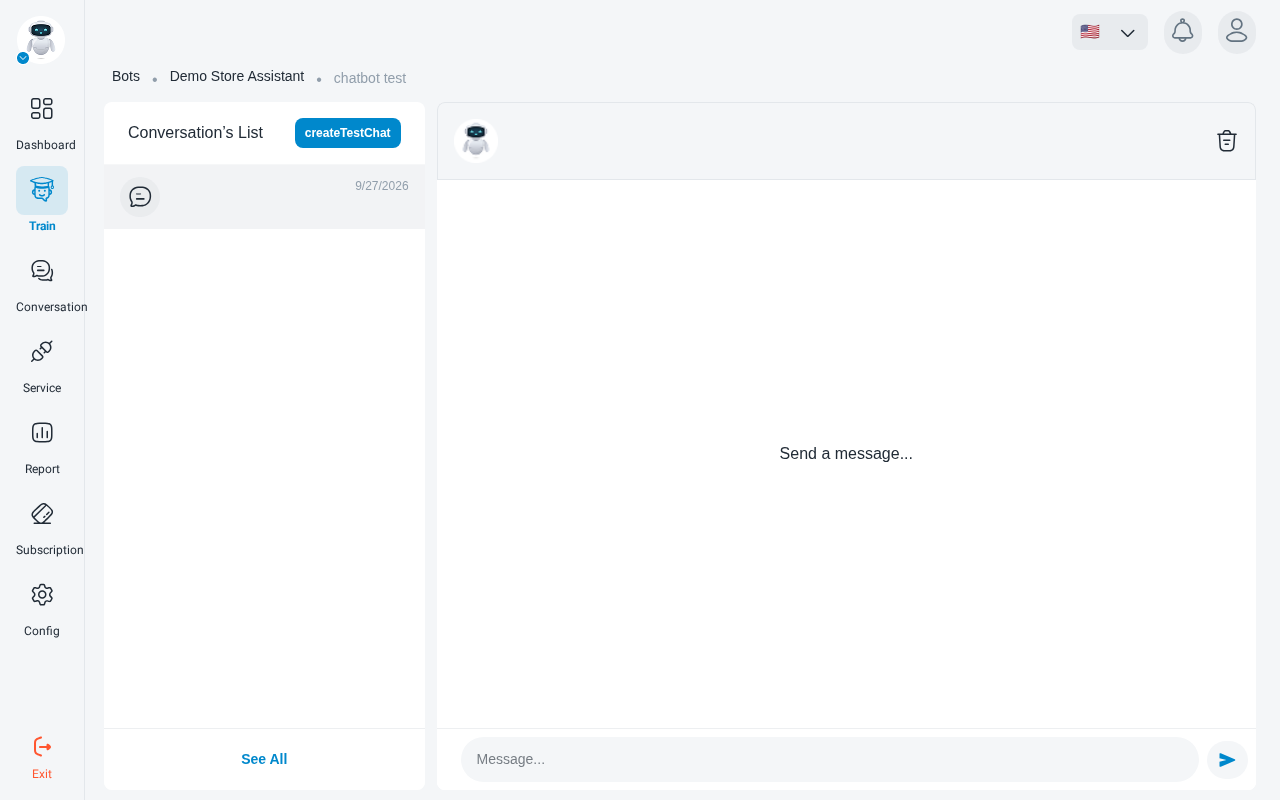
Open Chatbot Test in the training menu and ask the questions your customers ask. If an answer is wrong or missing, add a source that covers it and train again.
Put it on your website
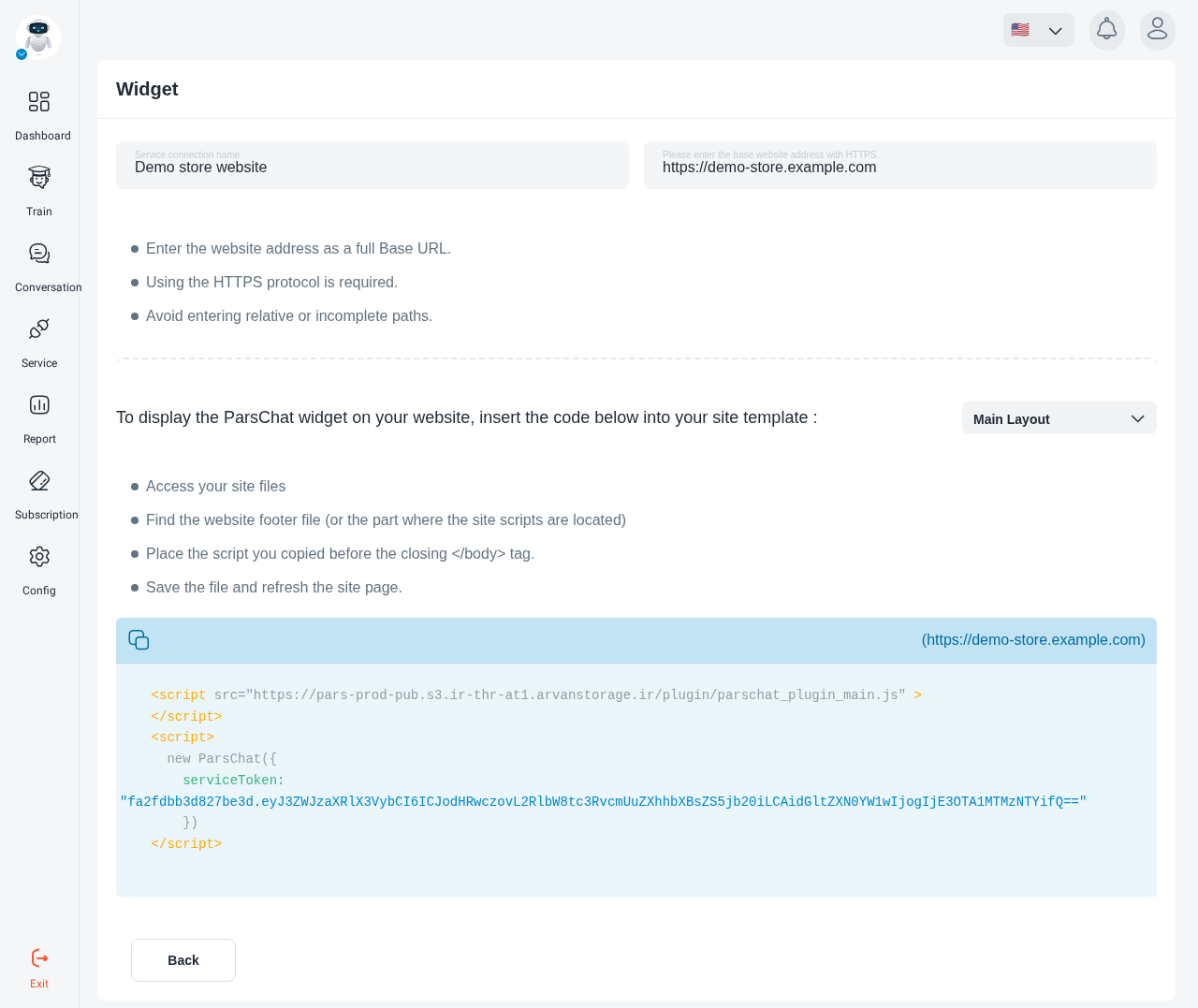
Go to Service, click connect to widget, enter a name and your site address, and click
Register and activate the service. Copy the code the panel gives you into your site, just
before </body>.
Using WordPress? Install the WordPress plugin instead. You can also connect Telegram, Instagram or Goftino.
Signing in later
Sign in at chat.parstechai.com with your email or mobile number and password, or choose Login with one-time password to sign in with a code sent to your phone. Forgot your password? Use Password recovery on the sign-in page.
After signing in you see your List of bots, with your plan’s Key Statuses: remaining messages, remaining services and days left on your subscription.
Your robots
Each robot card shows its status:
Use Manage bots to switch robots on or off. Your plan decides how many robots can be active at once; to create more than your plan allows, you’ll be asked to upgrade.
To delete a robot, click Delete robot on its card and type the robot’s name to confirm.